
The moment you activate the plugin, you land on a dashboard that's honest about where you stand — everything reads zero until you generate your first license. There's no fake data to wade through and nothing pre-configured behind your back.
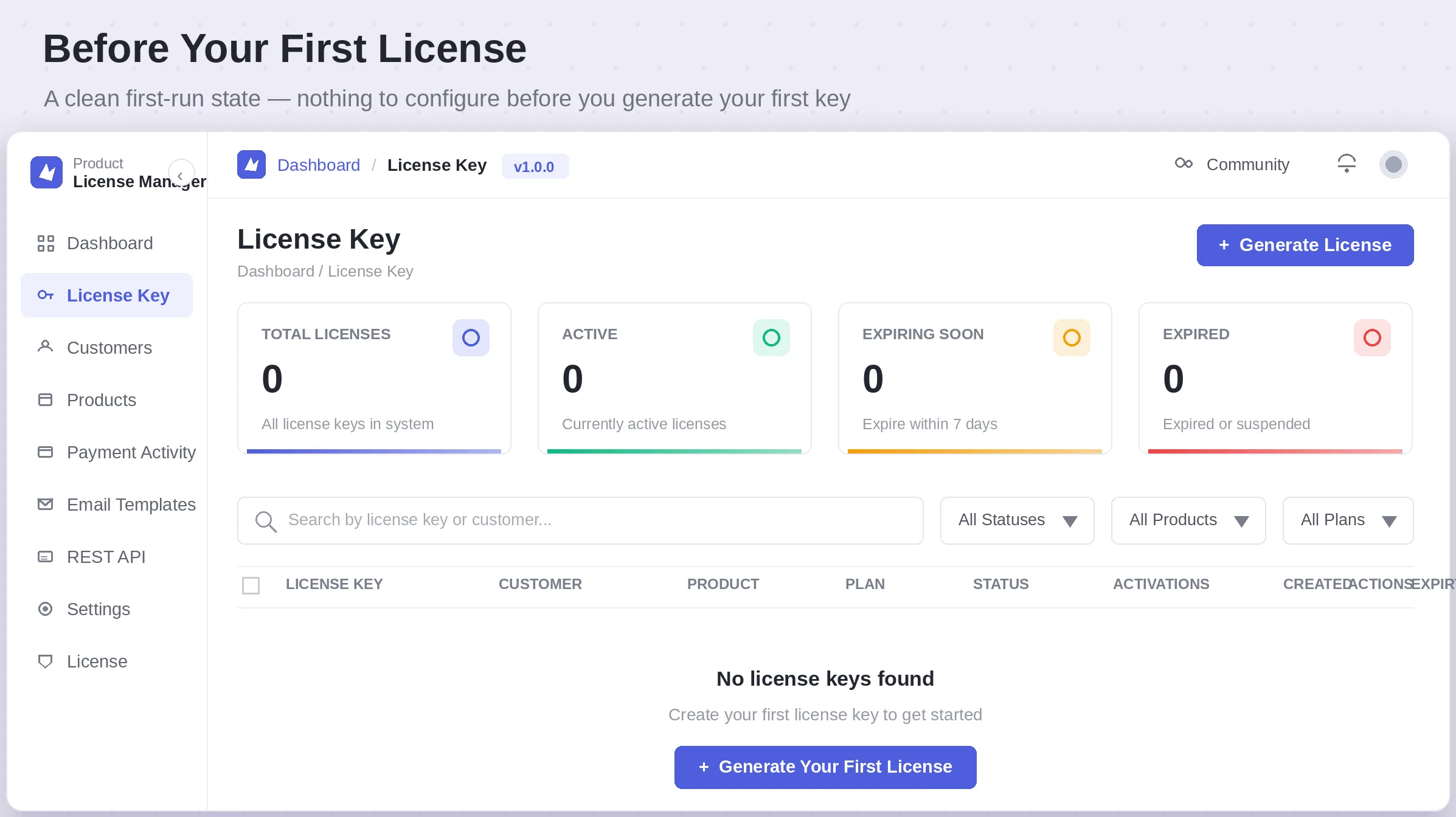
NOTE A zero-state dashboard isn't a bug — it means the plugin hasn't invented any activity for you. The moment you generate a real license, every card, chart, and table starts reflecting it immediately.
The fastest path from install to your first working license looks like this:
- Activate your plugin license so updates and support unlock.
- Add your first Product and, optionally, your first Customer.
- Click Generate License, choose the product and plan, and let the key auto-generate.
- Copy the key into your welcome email — or let the built-in Welcome / License template send it automatically.
- Watch the Payment Activity and Dashboard views populate as real customers activate the key on real sites.
TIP You don't have to create a customer before generating a license. The Generate License modal lets you pick — or add — a customer inline, so you can issue a key first and attach the buyer's details as soon as they're known.